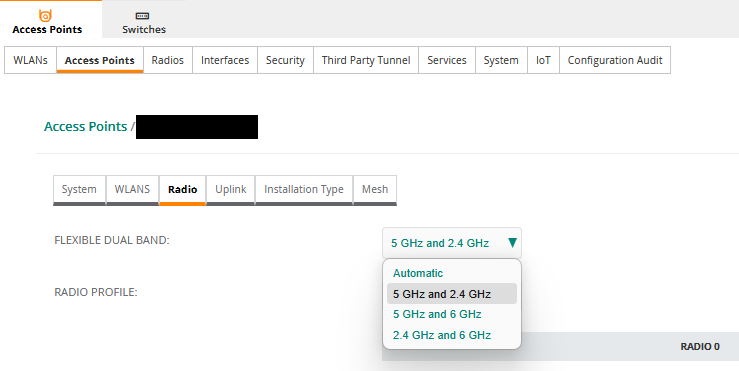
While one might assume importing Ekahau surveys to be used as floor plans in Central would be straight forward. It does not appear to be the case. We were sold on the premise that you import your survey and Central auto-populates the map with your APs, and it does! As long as you follow a few steps.
First of all in your Ekahau project. Whatever you name the project’s building will be the “Site” in Central.

To save everyone the trouble, don’t bother importing it via Central’s “Add Floor” option. Go to ekahau.cloud, click the … next to the project and click “Project export via API”.
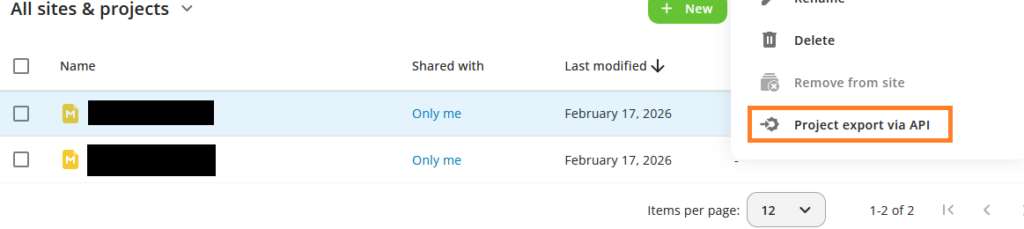
It this point you will need to provide a token to proceed with the export. You can generate the token at the following location in Central.
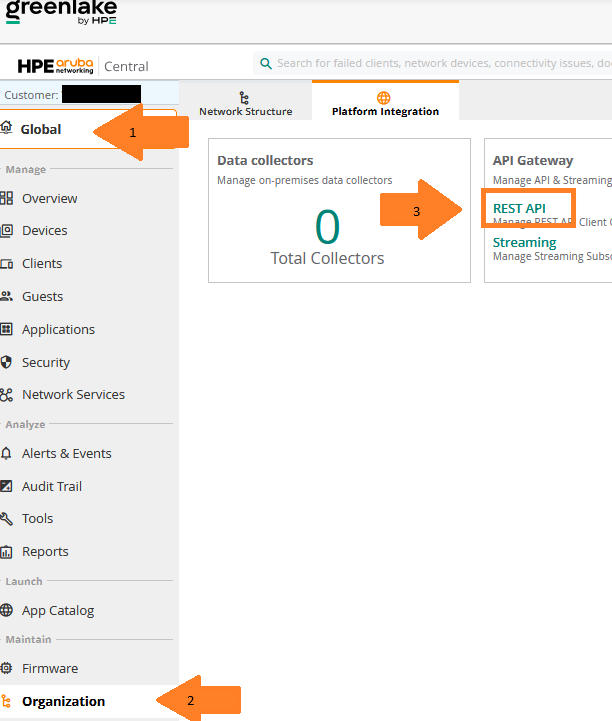

Click on the My APPs & Tokens, followed by the + Add Apps & Tokens. This will generate your token as can be seen below. Click “Download Token”.

On my browser this open up a window with a few lines of info. The one you need is the one I covered up in orange.
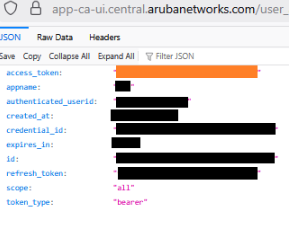
Go back to ekahau.cloud and input that token and select the domain you belong to. If the export was successful, you receive an email from Ekahau Cloud indicating you have successfully exported “projectNameHere” to your Central.
After a few minutes, it should appear in your Central under the Site that shares the name with your Ekahau Building name I previously mentionned.
In Central you may or may not have to move the APs and switches over to that site for it to populate on the map.
But it does work!
Cheers,
_